![fruitcore_WB_lang_130419_robotics-petrol-01-1.png]](https://www.fruitcore-robotics.com/hs-fs/hubfs/fruitcore_WB_lang_130419_robotics-petrol-01-1.png?height=40&name=fruitcore_WB_lang_130419_robotics-petrol-01-1.png)
Language
German, English and French can be selected.
User roles, rights and passwords
There are three standard user roles in horstOS, which have different rights. These are Administrator, Programmer and Operator.
Rechte der Benutzer-Rollen
| Right | Description | Admin | Programmier | User |
| changeControllerValues | Change controller values (settings) | ✅ | ❌ | ❌ |
| changeJointLimits | Configure axis restrictions (settings) | ✅ | ❌ | ❌ |
| changeOutputs | Switch outputs | ✅ | ✅ | ✅ |
| changePasswords | Assign/change passwords (settings) | ✅ | ❌ | ❌ |
| changeRobot | Change robot model. Both in settings and when loading a program. | ✅ | ❌ | ❌ |
| changeSafetyIO | Configuration Safety I/O | ✅ | ❌ | ❌ |
| changeToolInSettings | Change tool (settings) | ✅ | ✅ | ❌ |
| closeApplication | close horstOS | ✅ | ✅ | ❌ |
| configureHMI | Configuration User-specific operating view (settings) & configuration Macro- Buttons | ✅ | ✅ | ❌ |
| connectToRobot | connect to robot | ✅ | ✅ | ✅ |
| editProgram | Edit/delete programs | ✅ | ✅ | ❌ |
| editProgramInAutomaticMode | edit program in automatic mode | ✅ | ✅ | ❌ |
| externalInterface | Access to external robot control menu | ✅ | ✅ | ❌ |
| loadProgram | load Programs | ✅ | ✅ | ❌ |
| modbus | Use Modbus | ✅ | ✅ | ❌ |
| moveRobot | Control robot | ✅ | ✅ | ✅ |
| saveLoginData | Save user role when exiting horstOS (no need to log in again when restarting) | ❌ | ✅ | ✅ |
| saveProgram | save Programs | ✅ | ✅ | ✅ |
| seeLog | Access to log console | ✅ | ✅ | ✅ |
| seeOffsetJointSix | Access to Off submenu | ✅ | ❌ | ❌ |
| sendDataToHCosmos | Send robot data to horstCOSMOS. Applies to the button in the settings. | ✅ | ✅ | ❌ |
| update | update horstOS | ✅ | ❌ | ❌ |
| use3dObjectsInSettings | Use 3D-Objects (Settings) | ✅ | ✅ | ❌ |
Passwörter
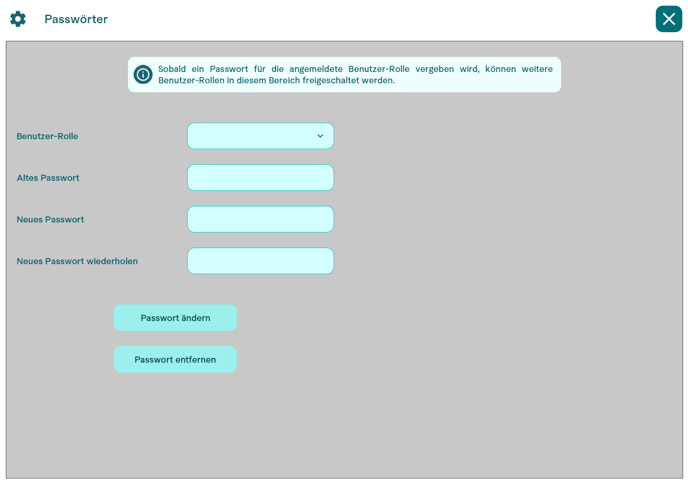
By default, no passwords are assigned for the user roles in horstOS. When horstOS is started, the Administrator user role is automatically logged in. The other two standard user roles, Programmer and Operator, can only be activated and assigned a password via this user role. However, this is only possible once a password has been assigned for the Administrator user role itself. Activation and password assignment can be carried out under Settings > Passwords.
horstCOSMOS
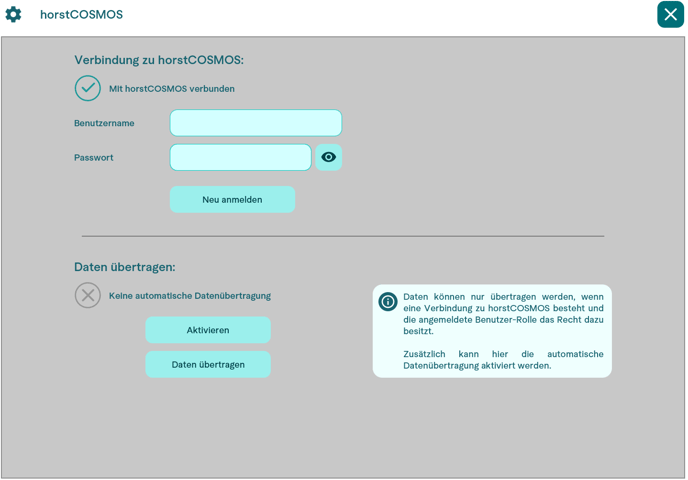
In the horstCOSMOS menu, a connection to horstCOSMOS can be established by logging in and data can be transferred to horstCOSMOS.
The data that is transferred consists of various robot system data such as process data, programs and error logs from the log console.
When the data is transferred, the programs stored in the standard storage location (save folder) are also sent to horstCOSMOS or saved online. You can check whether a program is saved online on horstCOSMOS in the file manager.
Programs saved online on horstCOSMOS are marked with a cloud symbol: .
.
As soon as a program is changed after it has been transferred to horstCOSMOS, the changes are not automatically saved online on horstCOSMOS unless automatic data transfer is activated. To save the changes and thus the current status of modified programs online on horstCOSMOS, the data must be transferred again.
OS-Licences
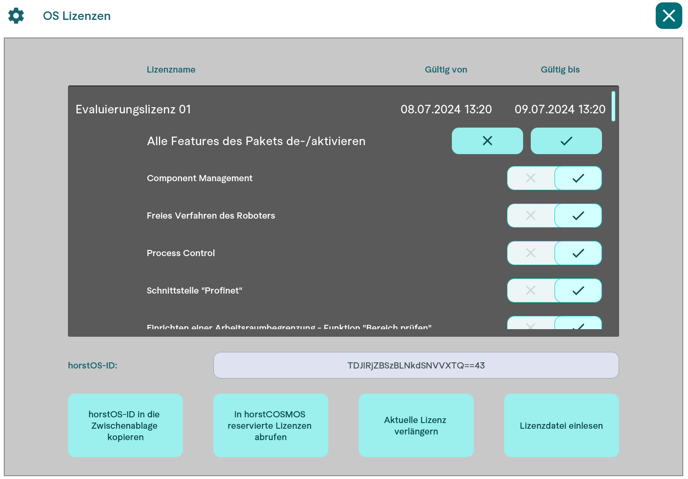
The currently activated horstOS license can be seen here and a license key can be entered to activate a different license.
Process Control
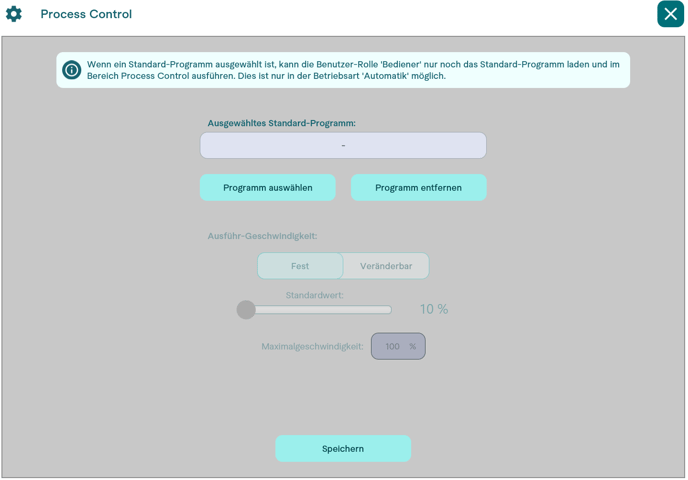
A simplified view that focuses on the operation of the running application can be set here. A program can be selected in this view, which is displayed by default in this view optimized for operation. You can also set whether the operating personnel can change the program speed.
Other Settings
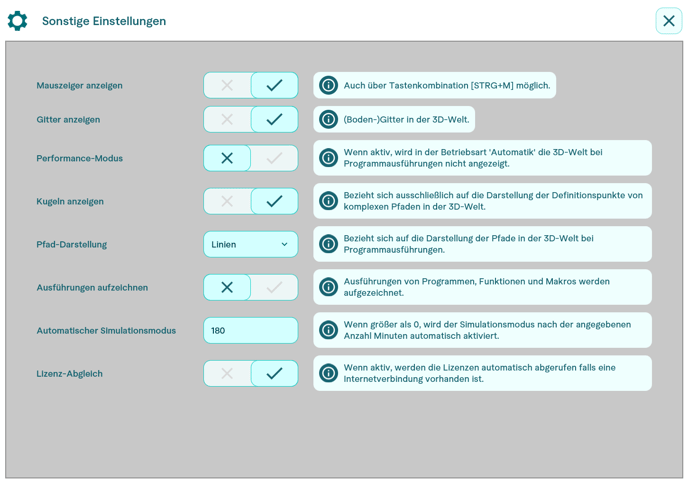
Further, mainly optical horstOS settings can be set under Other settings.
In addition, the automatic retrieval of licenses can be switched off using the “License synchronization” button.